
Overview
Often times when you make updates to a post, you want to be able to track if those updates resulted in a traffic change to that post. The Tracked Pages feature in MyContentDash helps you to do that.
Setting Up
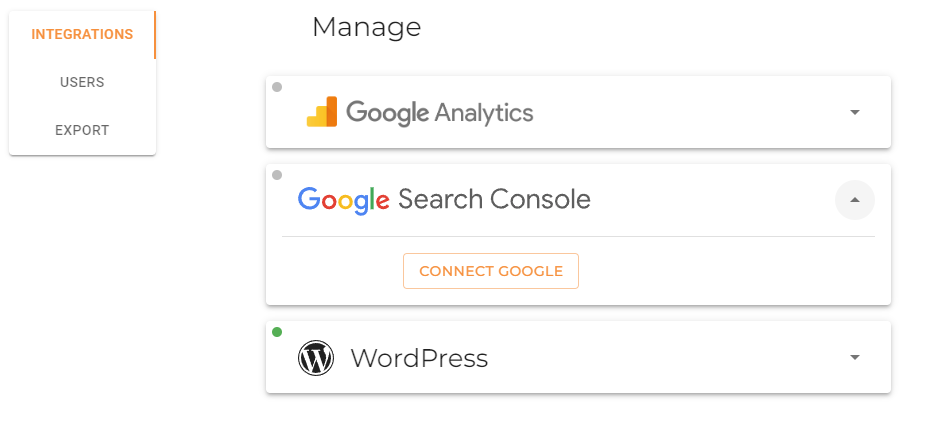
In order to use the Tracked Pages feature, you first need to connect your Google Search Console account to MyContentDash.
Step 1: Select Settings
In the upper right corner, click Manage Site.

Step 2: Connect Search Console Account
Expand the Google Search Console section and click the Connect Google button. Log in to the proper Google account via the pop-up.
Step 3: Select Property
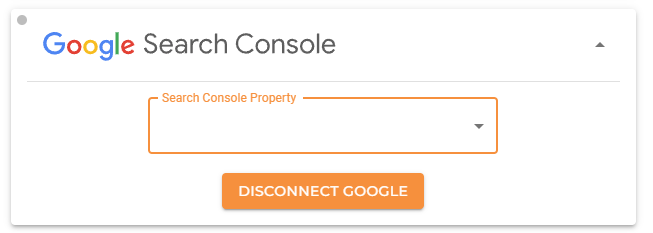
Click the Search Console Property dropdown and select the property to connect.
Viewing Page Performance
Once Google Search Console is connected, the page performance icon will be available in the Details column for every article.
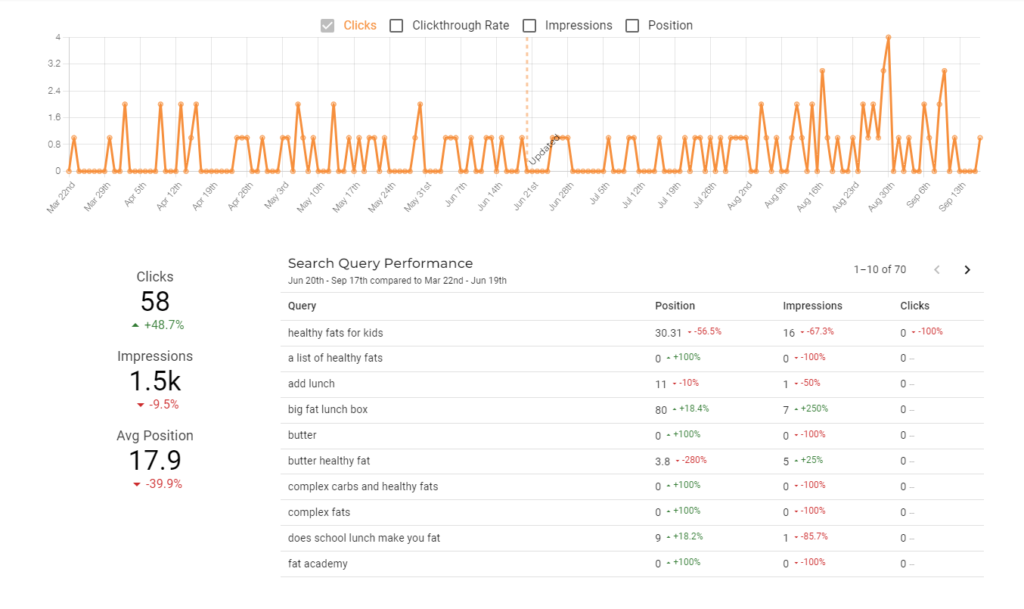
Clicking the icon will open a new dialog where Clicks, Clickthrough Rate, Impressions, and Position can all be investigated.
You can select from different day ranges using the Show rankings for drop down at the top.
Either the Published Date, or the Last Updated date will be indicated on the graph, according to what the Focus Range drop down is set to, allowing you to see at a glance how performance may have changed since that date.
In addition, percentage increase and decrease will be displayed for all of the data since the Focus Range date.
Note that Search Console only keeps rankings data for 16 months. Using a Published or Updated data past this range will results in an error message “Search console rankings are not available for this post at the selected date range.”
Tracking Post Performance
Tracking post performance, typically done after one or more updates, is done via the Tracked Page feature. This page lets you quickly check in on your tracked posts and allows you specify the types of updates you made for future reference.
Once Search Console has been connected, the Track Page icon will appear in the Details column.
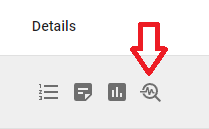
To add a page to be tracked, click that icon. Select the type of optimization you have made on the post, and click the ADD button.
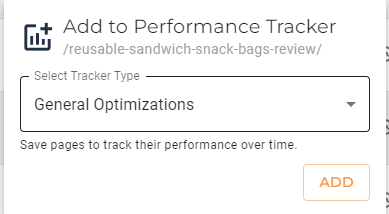
That post will now be available through the Tracked Pages menu item in the left sidebar.
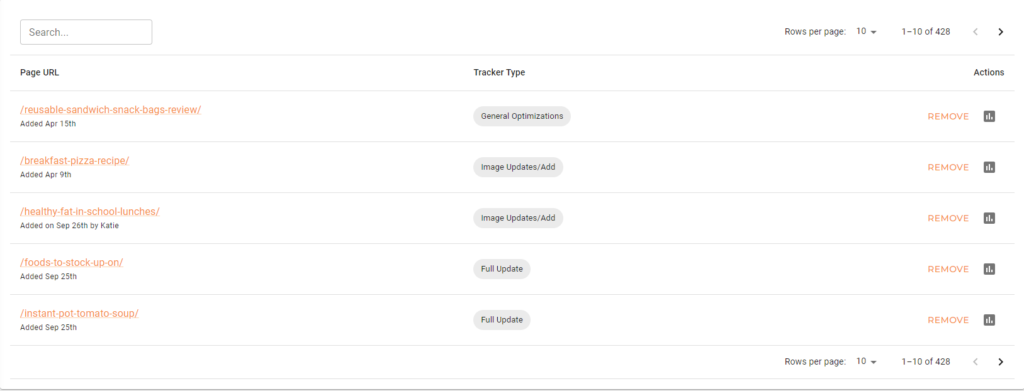
Click the graph icon under the Actions column to open the page performance dialog.
Pages can be removed from being tracked by clicking the REMOVE link.